
More Entertainment.
Less Money.
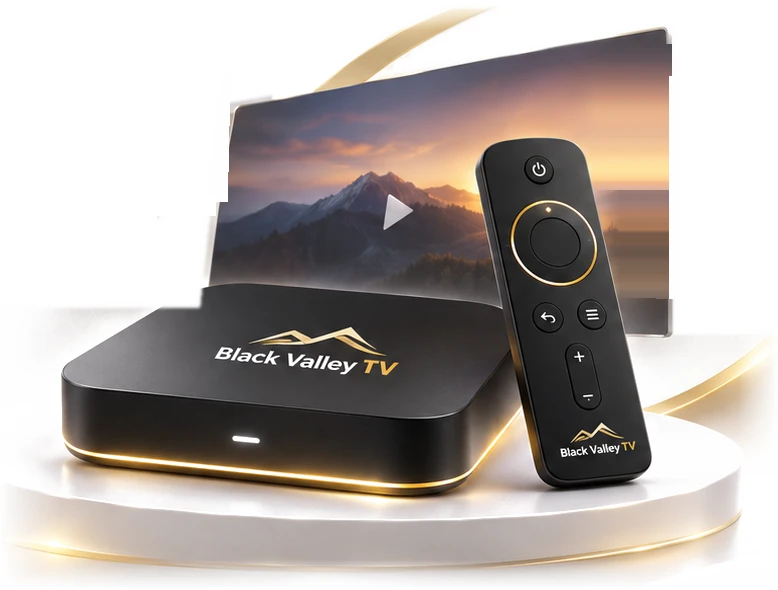
The Black Box is a one-time purchase — no contracts and no monthly box payments.
- No Contract
- No Monthly Box Payments
- Shipping Not Included

SETUP & SUPPORT
Easy Setup. Real Support.
Get up and streaming in minutes with our simple, step-by-step guides and clear operation instructions. Need help? Our friendly customer text support is here to assist you.
Questions about setup or your order? Text us anytime at 602-848-0184.
STEP-BY-STEP
Setup Guide
Tap a topic to open it. Tap a picture to enlarge it.
1. Install your ONN 4K streaming box
- Plug the HDMI cable into the box and into an HDMI port on your TV. Note which HDMI number you used (for example HDMI 2).
- Plug in the power adapter and connect it to a wall outlet.
- Put the batteries in the remote, turn on your TV, and choose the same HDMI input on the TV.
- Follow the on-screen prompts to pair the remote and choose your language.
- Connect to your home Wi-Fi when asked, then continue through the on-screen setup.
2. Black Valley TV equipment setup
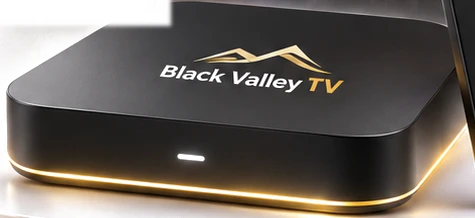
- Place the Black Box where its remote can reach it and where it has some airflow around it.
- Connect the HDMI cable and power as shown above, then wait for the light on the front to come on.
- Pick your TV input and let the box finish starting up.
- If the screen stays blank or anything looks different from these steps, text us and we will walk you through it.
3. Wi-Fi help
- Make sure your Wi-Fi password is typed exactly (capital letters matter).
- Move the box closer to your router if the signal is weak, or restart your router by unplugging it for 30 seconds.
- If the box can’t find your network, restart the box by unplugging its power for 10 seconds, then try again.
4. Troubleshooting
- No picture: check that the TV is on the right HDMI input and that both ends of the HDMI cable are firmly plugged in.
- No sound: check the TV volume and mute, then try the remote’s volume buttons.
- Buffering or freezing: restart the box, check your Wi-Fi, and try again.
- Remote not responding: replace the batteries and point the remote at the box. If it still won’t respond, text us.
5. Remote troubleshooting help
Still stuck? We can help by text. Send us a message describing what you see on the screen (a photo of the TV is perfect) and we will guide you through the fix, step by step.
6. Authorized app setup help
We can help you install and sign in to apps from your device’s official app store. Text us the name of the app you want to set up and we’ll point you to the right steps.
OPERATION
Using Your Remote
- Power — top button. Turns your TV or box on and off.
- Round ring — move up, down, left and right. Press the center to select.
- Back — goes back one screen.
- Menu — opens options for what you’re viewing.
- + / – — volume up and down.
SUPPORT
Real People. By Text.
Questions about setup, your order, or your box? Text us and a real person will help you.
Text 602-848-0184Ready to get your box? Order Your Box — $299 one-time, shipping not included.